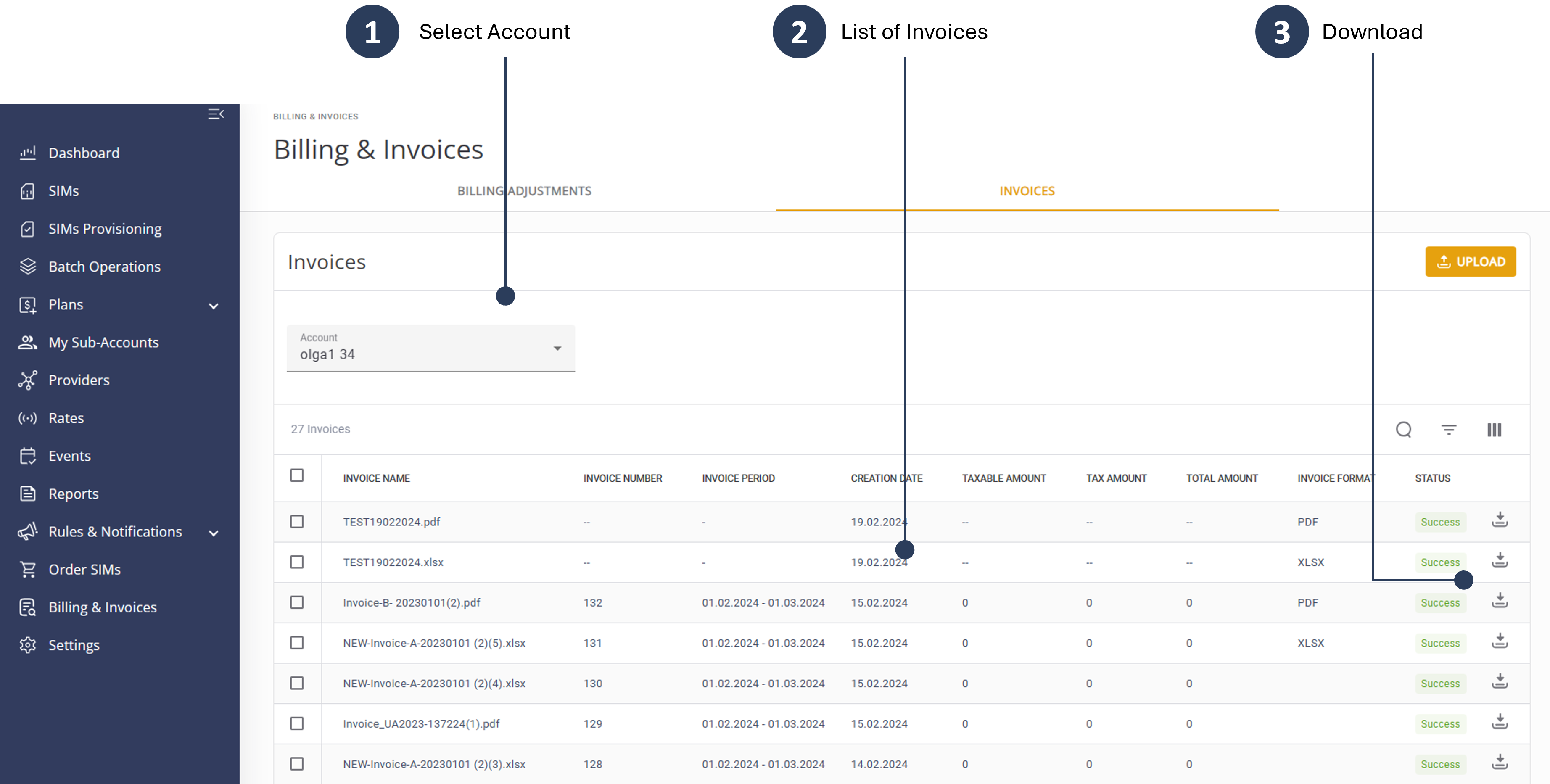
Invoice Module
The Invoices Module enables you to view and download all generated account invoices and monthly reports directly from the CMP portal.
The Invoices Module includes these files:
- Monthly usage report (in CSV or Excel format)
- Monthly invoice in (PDF format)
Invoice Table
The default list of invoice is My Account, that is the account you are currently logged into. By default, any invoices that have been uploaded previously are listed in the table in descending order of the Upload Date. However, you can sort the table by Upload Date or by Invoice Name.
Account Invoices
Click the Account list to choose any account you have access to and display the invoices that have been uploaded to the account selected; if no invoices have been uploaded, the No Data Found message appears.
Search for Invoice
You can search the table by Invoice Name only. The Search mechanism can find invoices with a partial name entry. The Search engine is not case sensitive.
Download Invoice
To download an invoice for an account, do these steps:
- Select Billing & Invoices from the sidebar menu.
- Click the Invoices tab.
- Select an Account to display a list of invoices.
- Scroll the list of invoices and click the Download icon to save invoice to computer.
To download multiple invoices, select the checkbox for each row and click the Download button displayed at the top of the page.
Make sure you make a regular monthly backup of all invoices and reports and files download to a local drive.
Here is a screen capture of the Invoices screen.